Prepaid Credits
Amberflo supports modern usage-based billing models such as bulk-buy and wallet-based billing, helping deliver predictability for both customers and internal accounting teams.
Customers can pre-purchase Credits by paying upfront for a specific amount of usage. Each purchase adds a Prepaid Credit Card to the customer's Wallet, reflecting the available balance.
As usage occurs, charges are drawn down from the Wallet in real-time.
Invoices will still display the usage details and line item costs. However, no payment will be due on the invoice until the Wallet balance is fully depleted.
This approach allows for flexible, transparent billing while supporting prepayment and commitment-based pricing strategies.
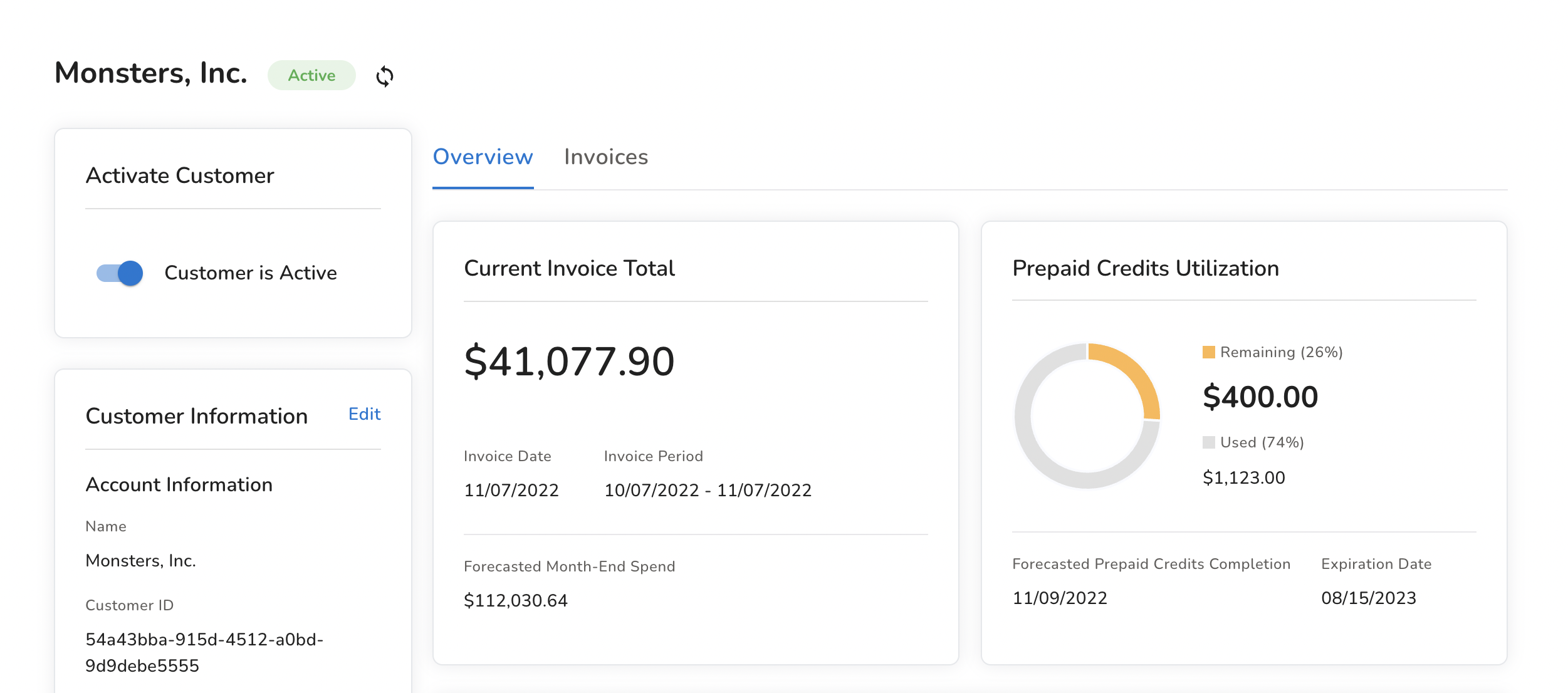
The screenshot below shows how Prepaid Credits are applied to the subtotal on an Invoice.

Adding Prepaid Credits
To add prepaid credits to a customer’s account:
- Navigate to the Customers tab.
- Select the customer by clicking on their name.
- Go to the Credits tab within the customer profile.
- Click Add Prepaid Credits.
You’ll be presented with a form to define:
- The amount of prepaid credits
- Any conditions or expiration rules (if applicable)
Once saved, the prepaid credit amount will be added to the customer’s Wallet, and usage will begin drawing down from this balance in real time. A screenshot of the screen to define the Prepaid Credit amount with any conditions is shown below:
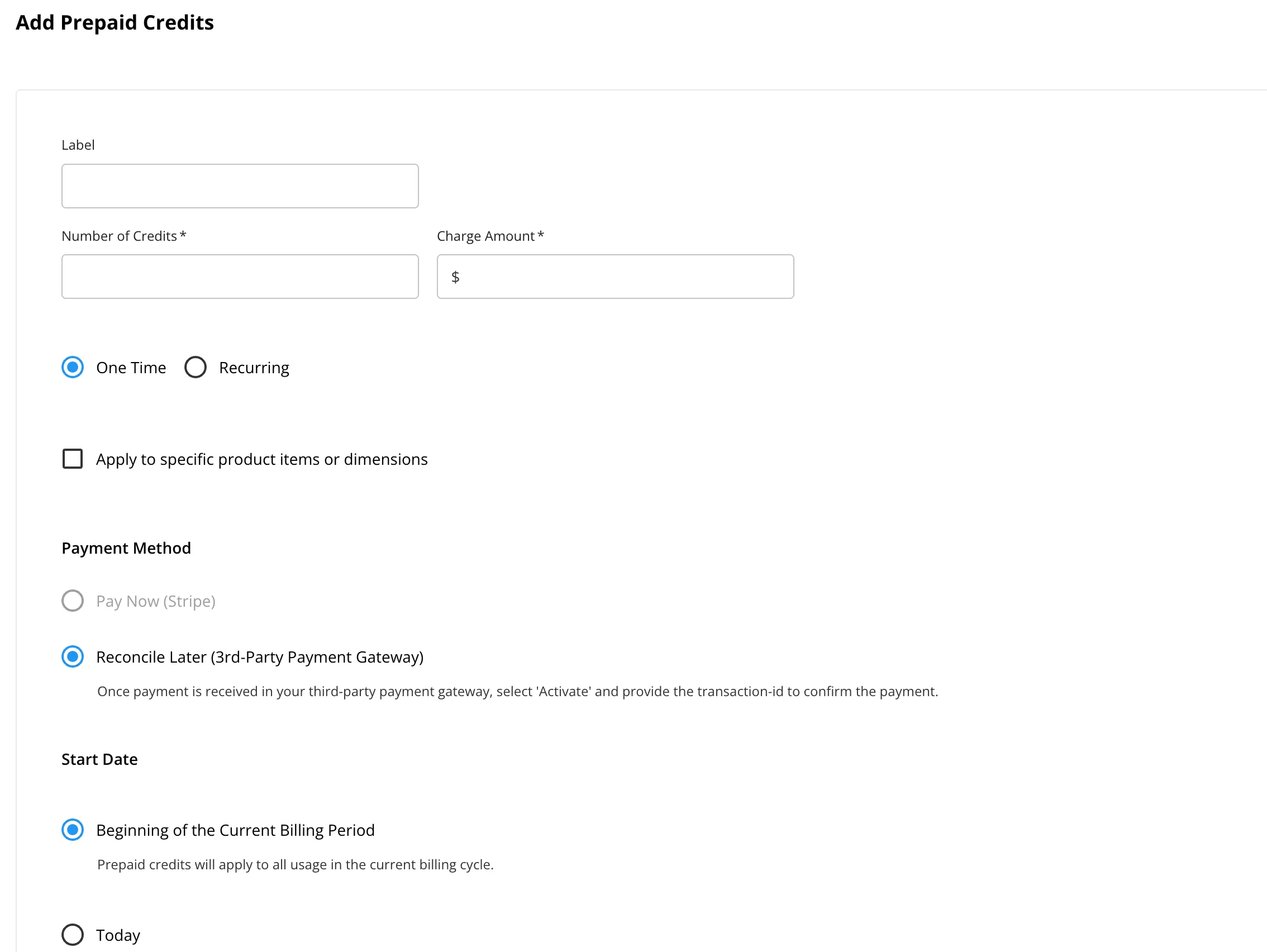
When adding prepaid credits, you'll need to provide the following details:
- Transaction Name – A descriptive name for easy reference
- Number of Credits – The total amount of prepaid credits to add
- Charge Amount (optional) – If left blank, a 1:1 credit-to-charge conversion will be applied by default
You can also choose the transaction type:
- One-Time – A single, non-recurring credit addition
- Recurring – Credits will be added on a regular schedule, based on the configured time frame
By selecting the checkbox "Apply a Condition to Prepaid Credits", you can restrict the usage of these credits to:
- A specific meter
- A particular dimension combination
This is useful for limiting prepaid credits to certain features, products, or customer behaviors.
Charging the Customer
You must also select how the customer will be billed for this transaction:
- Now – If your Stripe account is connected and the customer's payment information is available, the charge will be processed immediately.
- Reconcile Later – If Stripe is not configured or you prefer to charge manually at a later time
If Reconcile Later is selected, the transaction will be saved as pending.
Post-Save Behavior
Once saved, return to the Customer Profile view. You’ll see the pending prepaid credit transaction marked with a "Requires Action" tag, indicating that follow-up is needed to complete the charge.
See the screenshot below:

Once payment is received in your third-party payment system, go back to the pending prepaid credit transaction and select Activate. You will be prompted to provide the Transaction ID as confirmation of the payment. This step is important, as Amberflo uses the provided information to reconcile the prepaid credit purchase.
You can also activate the transaction programmatically using the APIs. See Update an external prepaid card status for details. After the activation is saved, the prepaid credits become available and will be automatically drawn down as usage is recorded.
Credits Expiration
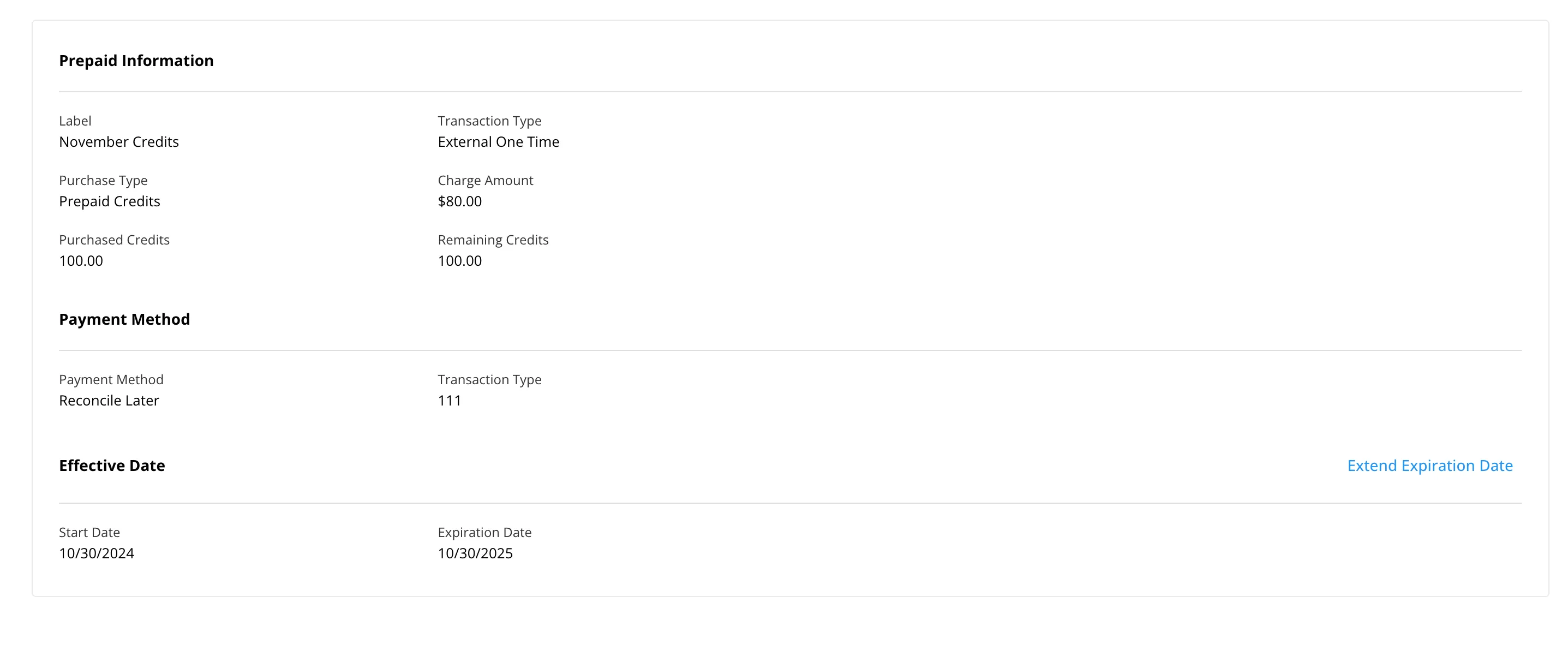
Amberflo automatically manages the balance of prepaid credits, deducting from it in real time based on billable usage. Each prepaid credit card includes an expiration date. Once that date is reached, any remaining credits on the card are no longer valid and will be removed from the available balance.
To configure or extend the expiration date for a specific prepaid credit card, go to the Credits tab within the customer’s profile. From there, open the details of the card in question and adjust the expiration settings as needed.
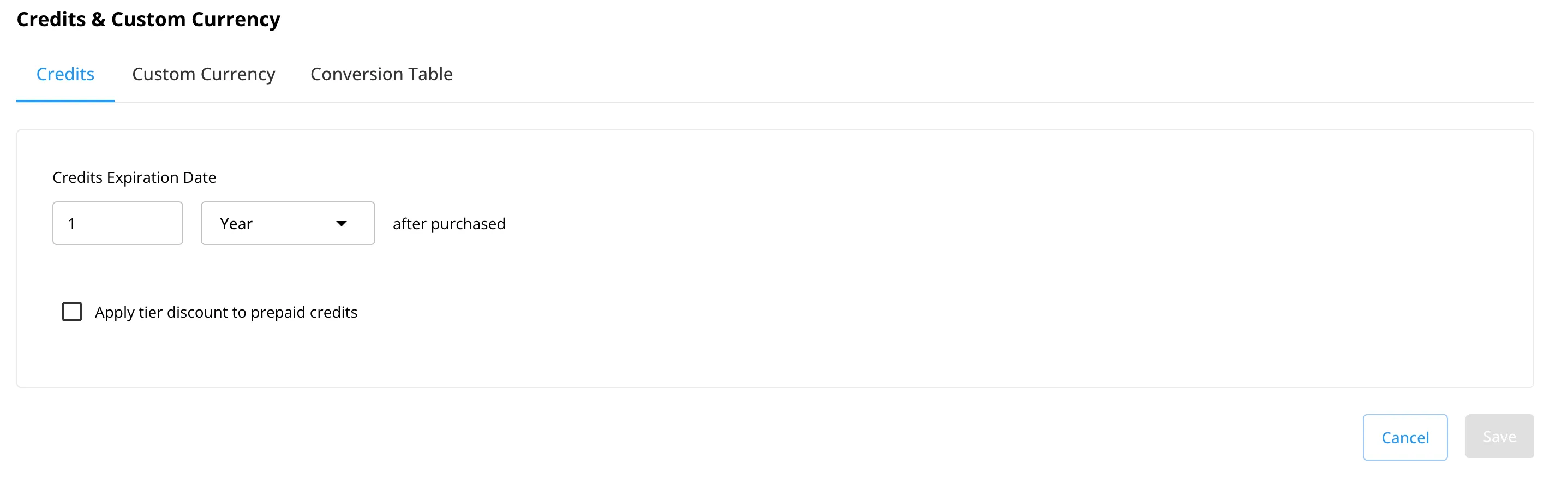
You can also configure the default expiration date for all purchased prepaid credit cards in the system. To do this, simply visit the Credits page under the Settings tab and configure the default duration of the prepaid credit cards.